Burp Suite Dynamic Scope Template for Pentesters
Are you tired of manually setting up the scope of a Burp Suite project every time you start a new pentest? Worried that a host might be missing from your whitelist? This article shows how to filter unwanted hosts while keeping unknown or newly discovered hosts visible.
Setting up Advanced Scope Control

Open a new temporary Burp project and go to Target > Scope. Enable Use advanced scope control.
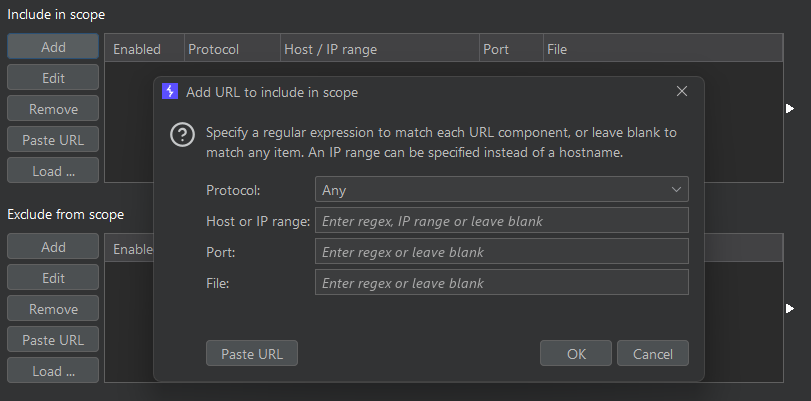
To configure a general wildcard whitelist, go to Include in scope, click Add, and click OK without entering any values:
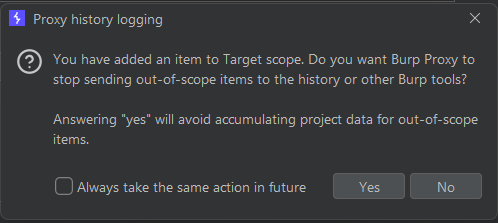
When prompted, select Yes to enable out-of-scope items to be logged to history and other Burp tools:
Optional: Firefox Background Request Filter
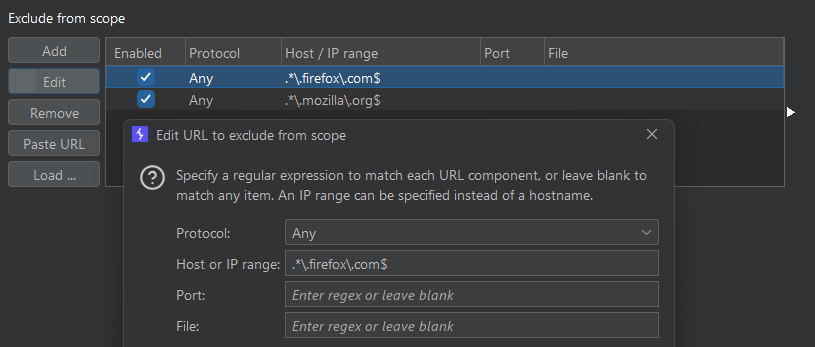
Firefox makes background requests to hosts such as detectportal.firefox.com. To keep these out of the scope view, add the following entries under Exclude from scope:
.*\.firefox\.com$
.*\.mozilla\.org$
Setting up the Site Map and HTTP History Views
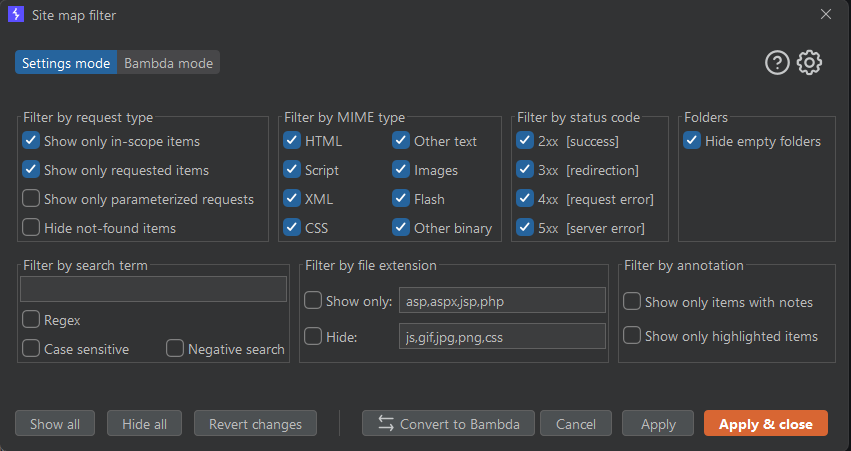
In Target > Site map, click Show all, then select Show only in-scope items, Show only requested items, and Hide empty folders. Click Apply & close:
In Proxy > HTTP history, click Show all, select Show only in-scope items, and click Apply & close:
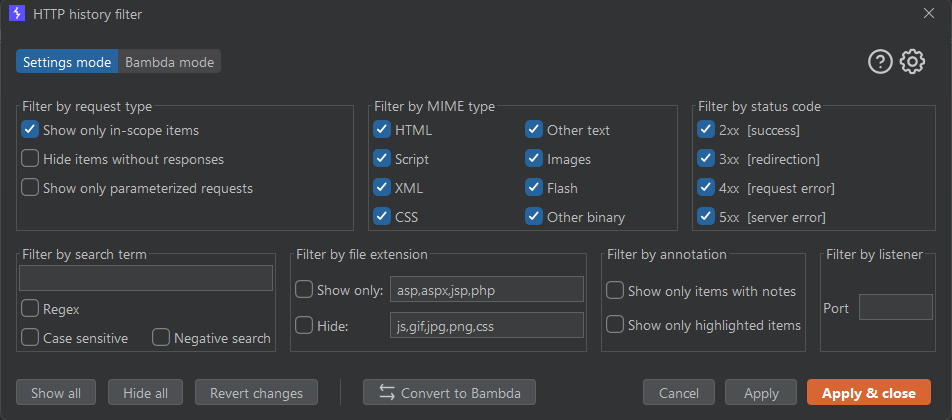
Final Steps
Right-click any target you want to exclude from scope. The filter then applies across the configured traffic views:
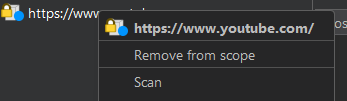
New hosts remain in scope instead of being silently filtered, which avoids overlooking unknown hosts during testing.
Saving the Configuration
Save the project settings to a file so you can reuse this configuration:
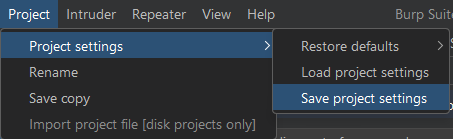
Load the saved settings when creating a new Burp project:
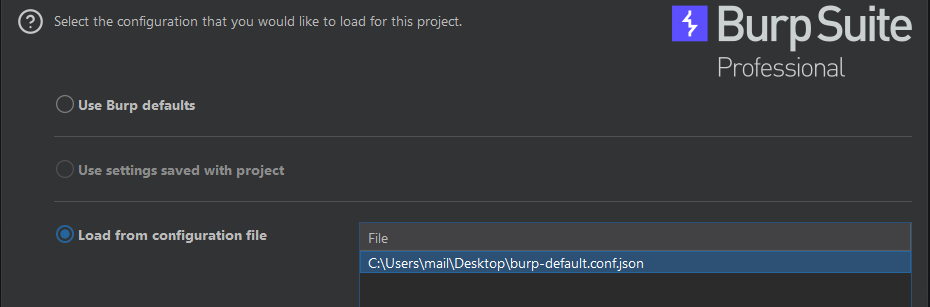
This restores the configured traffic filters and advanced target scope settings.