iOS DNS Adblocking while on Cellular
On an iPhone, Wi-Fi settings let you specify a custom DNS server, but cellular connections such as LTE or 5G do not. This post shows how to use a local WireGuard interface to apply DNS-based ad blocking on cellular data.
The quirks of local VPN interfaces on an iPhone
While examining VPN apps, I noticed that WireGuard for iOS supports custom VPN configurations with DNS servers. A connection to a remote VPN server is not needed to apply a local DNS configuration.
You can create a local VPN profile in WireGuard, set AdGuard public DNS as its DNS server, and use it to block ads on the device.
WireGuard Setup
Install WireGuard from the App Store. Open the app, tap +, and choose Create from scratch.
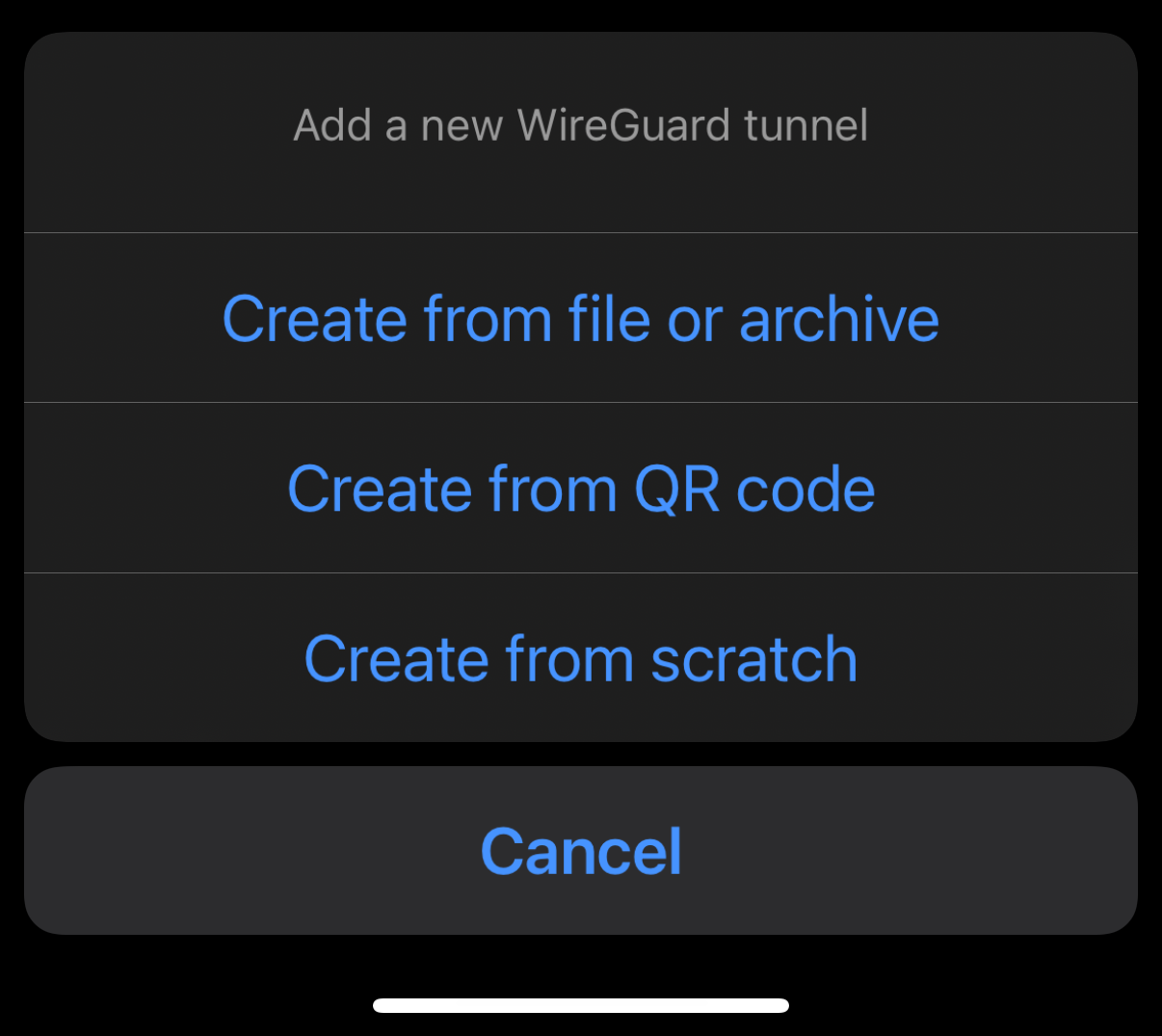
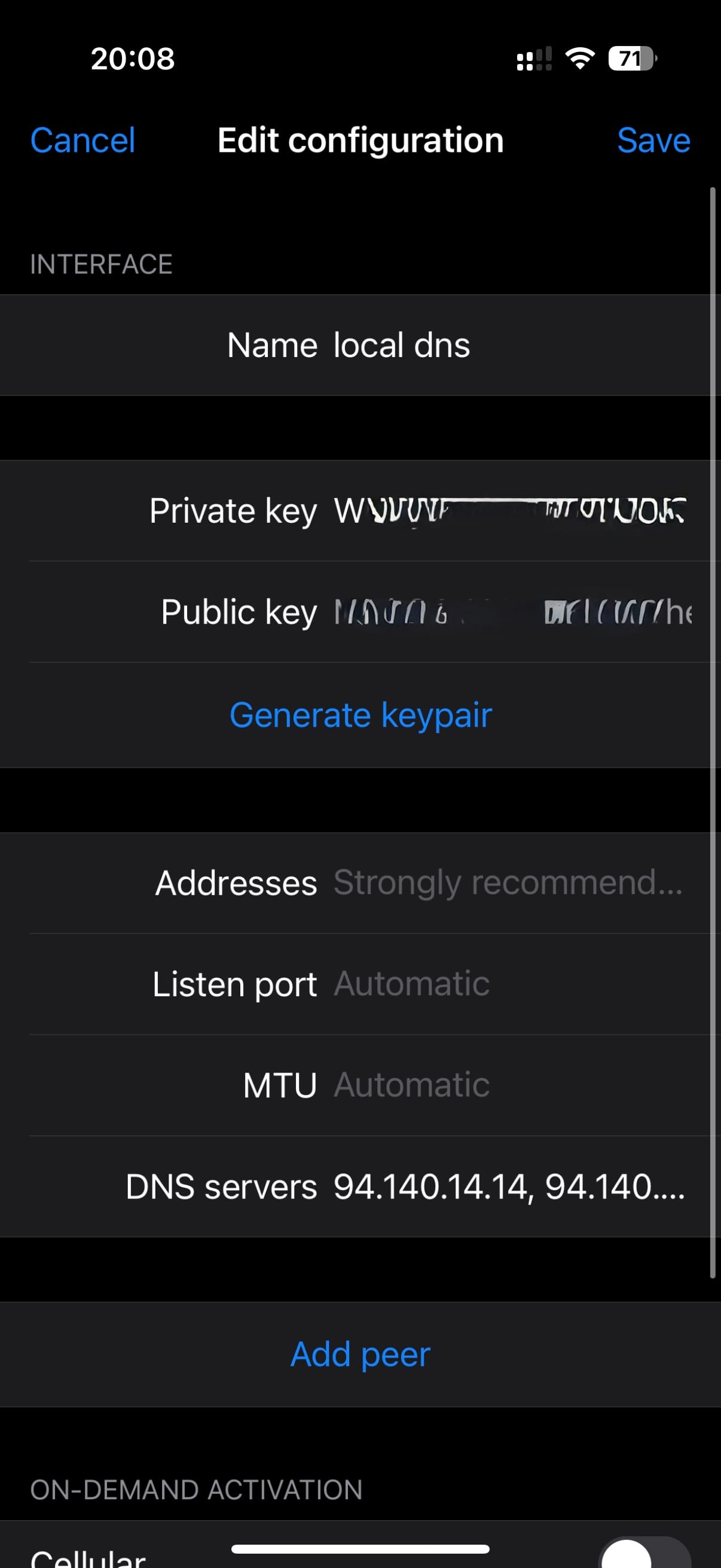
Name the profile, generate a key pair, and enter these AdGuard public DNS resolvers as the DNS servers, separated by a comma:
94.140.14.14, 94.140.15.15
Save the profile. It should look like this:
Turning On Cellular DNS AdBlocking
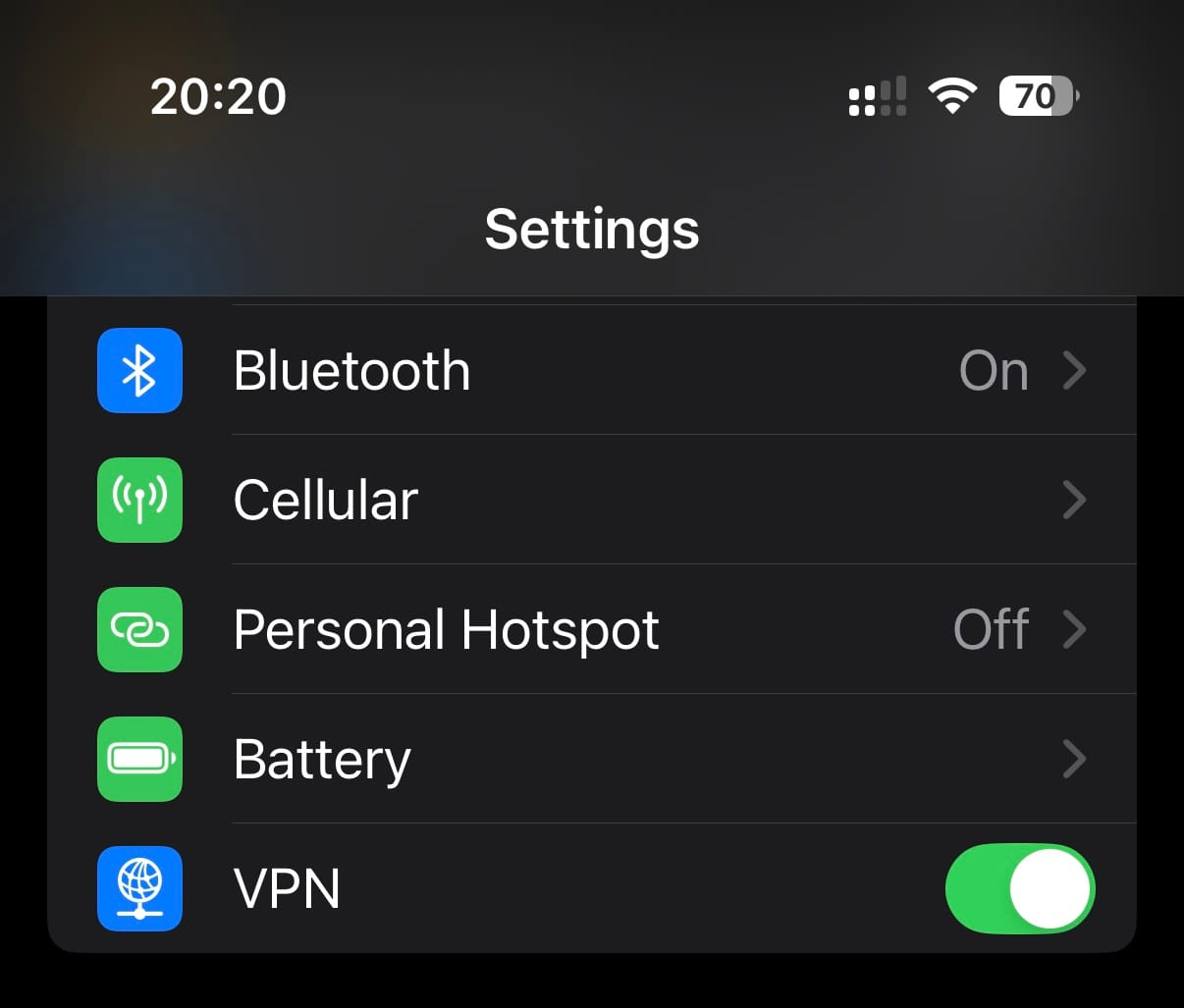
Enable the newly created interface either in WireGuard or with the VPN switch in the iOS Settings app:
The Result
Some apps serve ads from separate domains, so DNS blocking can prevent those requests. YouTube and other apps that serve ads from their own domains may not be affected.
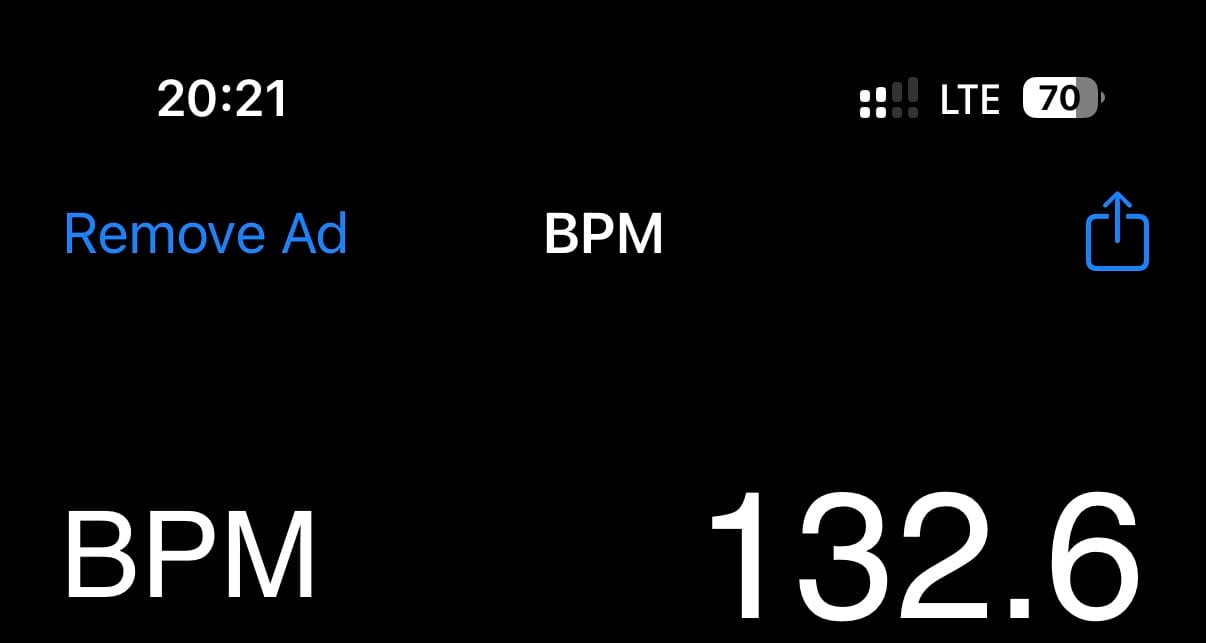
The following shows an example in a BPM counter app:
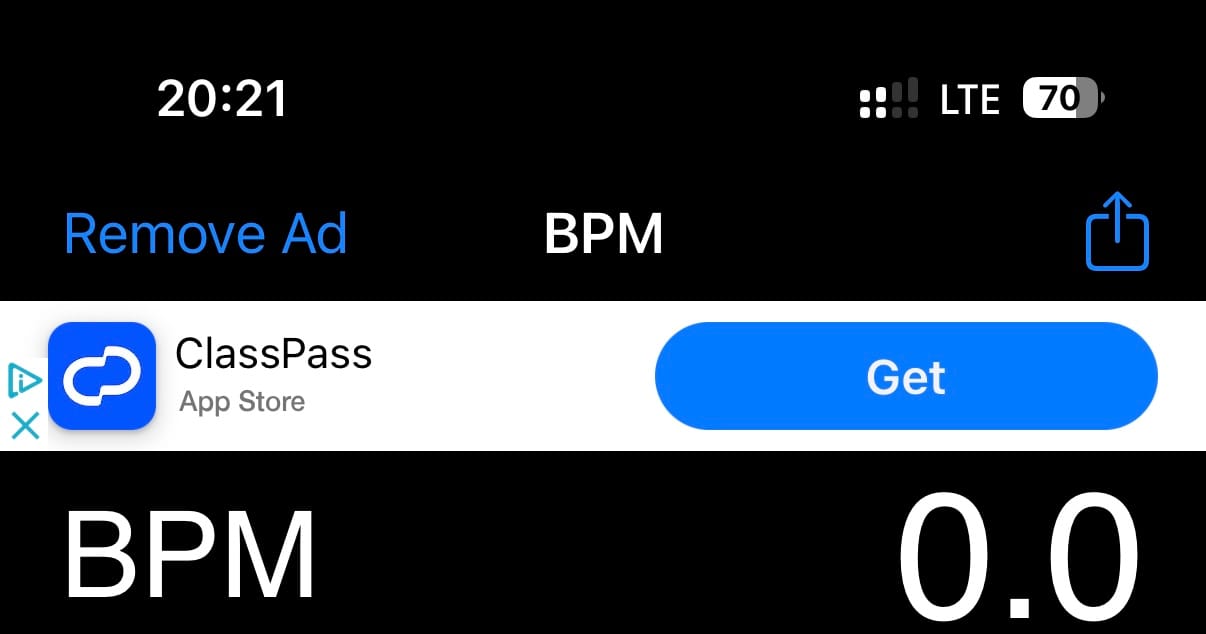
After enabling the VPN toggle, the ad is blocked, even on a cellular connection:
I hope you enjoy ad-free iOS apps with this simple solution.